Brief
If you’ve ever wondered why your internet feels slow even though a speed test looks fine, the culprit is often latency or packet loss rather than bandwidth. This is where SmokePing shines. It’s one of the most effective tools for continuously monitoring network performance and producing beautiful graphs that make problems easy to spot.
Whether you’re a home lab enthusiast, a system administrator, or running business-critical services, SmokePing can quickly reveal intermittent network issues that other monitoring tools often miss.
What is SmokePing?
SmokePing is an open-source network monitoring application that measures latency over time. Instead of simply checking whether a server is online, SmokePing records response times and packet loss, displaying them in easy-to-read graphs.
Its unique “smoke” visualization makes jitter (variation in latency) immediately obvious.
Why Use SmokePing?
SmokePing offers several advantages over traditional monitoring tools:
- Continuous latency monitoring
- Packet loss detection
- Historical performance graphs
- Multiple probe types
- Email alerting
- Lightweight resource usage
- Web-based interface
- Excellent troubleshooting capabilities
Typical uses include:
- Monitoring internet connections
- Checking VPN stability
- Watching WAN links
- Monitoring cloud servers
- Comparing multiple ISPs
- Tracking Wi-Fi performance
Installing SmokePing
On Debian or Ubuntu, installation is straightforward:
sudo apt update
sudo apt install smokeping apache2
On Fedora:
sudo dnf install smokeping
On RHEL or Rocky Linux, you may first need to enable the appropriate repositories before installing the package.
Basic Configuration
Most configuration files live under:
/etc/smokeping/
The main configuration file is typically:
/etc/smokeping/config.d/
A simple target might look like:
+ LocalNetwork

menu = Local Network
title = Local Network Devices

++ Router
menu = Router
title = Home Router
host = 192.168.1.1

++ GoogleDNS
menu = Google DNS
title = Google DNS
host = 8.8.8.8
You can monitor virtually anything that responds to ICMP pings.
Starting the Service
Enable SmokePing to start automatically:
sudo systemctl enable smokeping
sudo systemctl start smokeping
Verify it’s running:
sudo systemctl status smokeping
Viewing the Dashboard
Once installed, open your browser and navigate to the SmokePing web interface.
You’ll see graphs that update automatically every few minutes, allowing you to view:
- Average latency
- Minimum latency
- Maximum latency
- Packet loss
- Jitter
The graphs become more useful over time as historical data accumulates.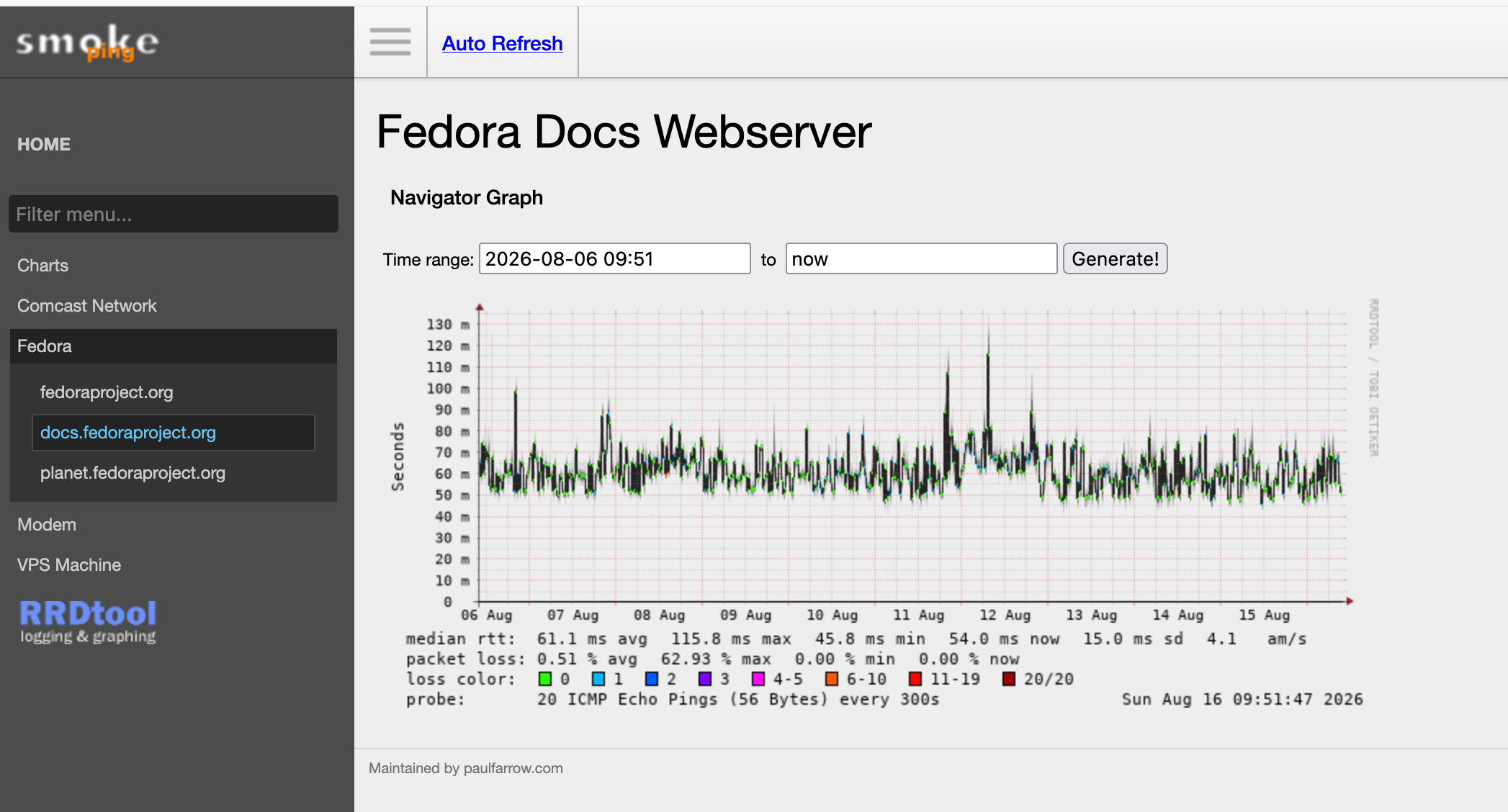
Understanding the Graphs
SmokePing graphs contain a wealth of information:
Flat green line
Your connection is stable with consistent latency.
Tall “smoke”
The wider the smoke appears, the more jitter is occurring.
Red sections
These indicate packet loss.
Latency spikes
Often caused by congestion, overloaded routers, wireless interference, or ISP issues.
Over days or weeks, recurring patterns can help identify scheduled backups, ISP congestion, or network maintenance windows.
Monitoring Multiple Locations
One of SmokePing’s strengths is organizing hosts into groups.
For example:
Internet
    Google
    Cloudflare
    Quad9

Servers
    Web01
    Database01
    MailServer

Network
    Router
    Switch
    Firewall
This makes it easy to identify whether problems originate inside your network or farther upstream.
Best Practices
To get the most from SmokePing:
- Monitor your gateway.
- Monitor your ISP’s first hop.
- Monitor public DNS servers.
- Monitor your web servers.
- Keep historical data for trend analysis.
- Configure email alerts for excessive latency or packet loss.
- Back up your configuration files.
Common Troubleshooting Tips
If graphs stop updating:
- Verify the SmokePing service is running.
- Check firewall rules that may block ICMP.
- Ensure target hosts respond to ping requests.
- Review SmokePing logs for configuration errors.
- Confirm the web server is serving the generated graph images.
Final Thoughts
SmokePing remains one of the best open-source tools for visualizing network latency and packet loss. It is lightweight, reliable, and provides insights that are difficult to obtain from simple uptime checks or occasional speed tests.
Whether you’re diagnosing an unreliable internet connection, monitoring remote servers, or keeping an eye on your home lab, SmokePing gives you a clear picture of network health over time. Once you’ve used it to troubleshoot a difficult issue, you’ll likely consider it an essential part of your Linux monitoring toolkit.
