The Problem
If your Eaton UPS randomly disconnects, throws “Data stale” errors, or crashes with a segmentation fault on modern Fedora releases, you are not alone. This issue stems from a combination of aggressive Linux kernel power management, changes in Network UPS Tools (NUT) v2.8.5, and permission conflicts with Fedora’s automated management services.
Here is a comprehensive guide to understanding the root cause and implementing a permanent, stable fix.
The Core Issues
The breakdown occurs across three layers of your operating system:
- USB Autosuspend Timers: Modern Linux kernels aggressively put USB ports into power-saving modes. On certain hardware chipsets (like Intel Atom C2000 series), this power-dropping causes the
usbhid-upsdriver to encounter severe USB string descriptor timeouts. - Driver Crash Loop: When the NUT driver receives empty or delayed packets from the sleeping USB port, a memory handling bug triggers. The driver either freezes in a “Data stale” state or crashes entirely with a
Segmentation fault. - Permission and Process Conflicts: Fedora utilizes an automated
nut-driver-enumeratorservice. This service attempts to manage the driver under an unprivilegednutuser account. This account frequently lacks direct hardware access, leading to permission blocks and duplicate “ghost” processes competing for the same USB wire.
Step-by-Step Resolution
To bypass these automated software flaws, you must move the driver out of Fedora’s automated infrastructure, grant it proper permissions, and force the USB port to stay awake.
1. Disable USB Autosuspend (The Hardware Fix)
You need to create a custom hardware rule to force the Eaton USB controller to remain in high-power, active performance mode.
Create a new udev rule file:
sudo nano /etc/udev/rules.d/99-nut-ups-power.rules
Paste the following line, which targets the Eaton vendor ID (0463), disables power control, and sets autosuspend to never trigger (-1):
ACTION=="add", SUBSYSTEM=="usb", ATTR{idVendor}=="0463", ATTR{power/control}="on", ATTR{power/autosuspend}="-1"
Apply the new rule immediately without rebooting:
sudo udevadm control --reload-rules && sudo udevadm trigger
2. Bypass the Automated Driver (The systemd Fix)
Next, create a manual systemd service file. This forces the driver to run safely as root to prevent permission-based segfaults, running cleanly on your targeted hardware loop.
Create the custom service file:
sudo nano /etc/systemd/system/yourups-driver.service
Add the following configuration:
[Unit]
Description=Network UPS Tools - Custom Eaton Driver
After=udev.service local-fs.target
Before=nut-server.service

[Service]
Type=forking
ExecStart=/usr/libexec/nut/usbhid-ups -u root -D -a yourups
Restart=always
RestartSec=5

[Install]
WantedBy=multi-user.target
3. Mask the Fedora Automated Driver
Permanently lock down the native Fedora background generator so it cannot spawn duplicate instances that fight over the physical USB connection.
Run the following command to mask the automated paths:
sudo systemctl mask nut-driver-enumerator.path nut-driver-enumerator.service
4. Align Global NUT Configurations
Update your core NUT configuration files to match the new standalone, root-privileged environment.
/etc/ups/nut.conf
Ensure your operational mode is set to standalone:
MODE=standalone
NUT_USER=root
NUT_GROUP=root
/etc/ups/ups.conf
Define your UPS instance (yourups) to match the name used in your systemd service file:
[yourups]
    driver = usbhid-ups
    port = auto
    vendorid = 0463
    description = "Eaton UPS"
5. Enable and Start Your New Services
Reload systemd to recognize the new service, enable it to run at boot, and start up your refreshed NUT ecosystem.
sudo systemctl daemon-reload
sudo systemctl enable --now yourups-driver.service
sudo systemctl restart nut-server.service
Verifying the Fix
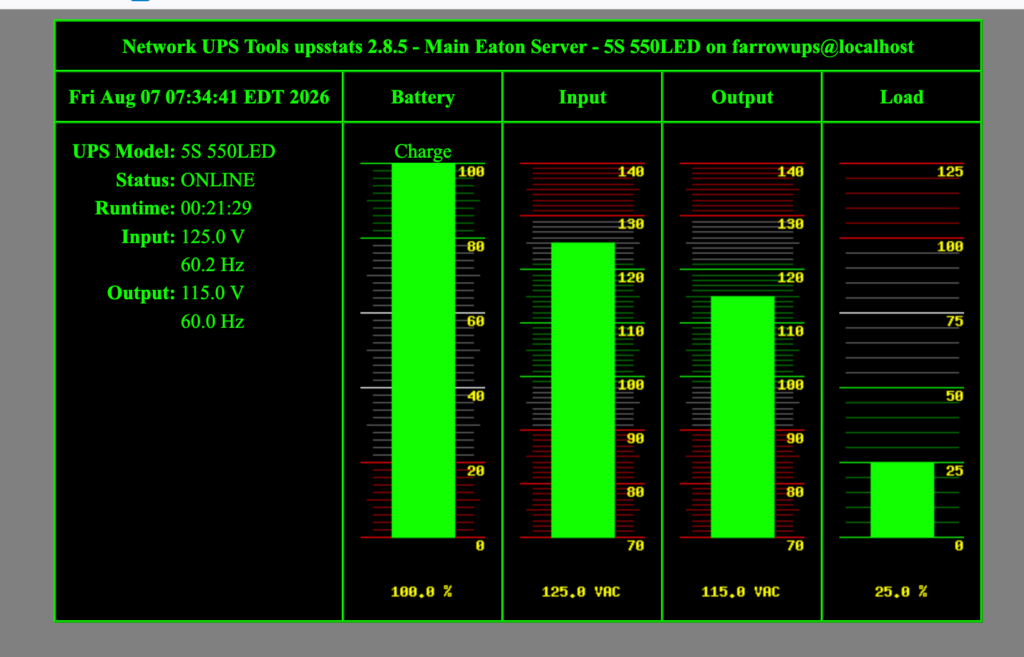
You can verify that your Eaton UPS is communicating properly and stalling has ceased by checking the client data:
upsc yourups@localhost
Expected Example Output:
device.mfr: EATON
device.model: 3S 850
device.type: ups
driver.name: usbhid-ups
driver.version: 2.8.5
ups.load: 12
ups.status: OL CHRG
If you see ups.status: OL CHRG (Online, Charging) and your metrics populate without throwing a Data stale error, your connection is fully stabilized.
